Pushing a plugin update directly to a live WooCommerce store and watching the checkout page break in real time is one of the fastest ways to understand why staging environments exist. A staging site is a private copy of a live store where plugin updates, theme edits, design tweaks, custom code, and WooCommerce configuration changes can be tested safely before anything touches production. Instead of troubleshooting while customers are actively trying to check out, conflicts, performance issues, and layout problems can be caught first in a controlled environment.
The concept is straightforward, but the hosting setup makes a meaningful difference in how practical staging is to use day to day. Hosting that treats staging as a built-in feature rather than a manual workaround typically offers one-click staging creation, isolated databases, selective push-to-live options, and automated backups. Without these capabilities, maintaining a staging workflow tends to become time-consuming and inconsistent. When staging is part of a structured deployment process, it can help protect conversions, reduce unplanned downtime, and give teams more confidence when shipping changes.
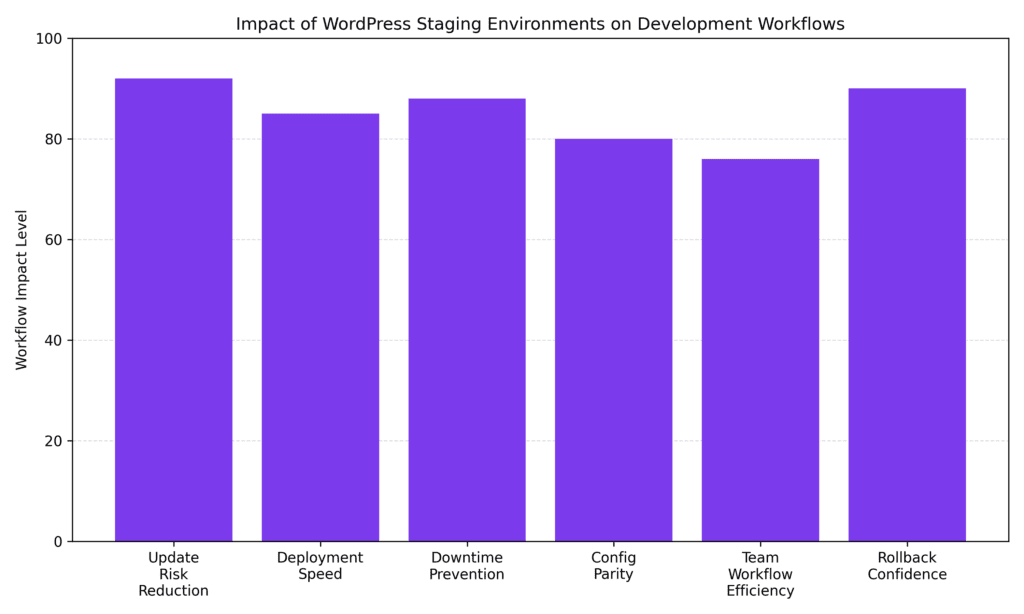
WordPress staging environments are widely adopted to reduce the risk of updates and increase confidence in rollbacks. Meaningful impact is also commonly seen in downtime prevention and deployment speed, reflecting how hosting infrastructure choices can shape staging into a stability and performance safeguard. Configuration parity and workflow efficiency further illustrate that staging is no longer just a developer convenience. For revenue-driven WooCommerce stores, it has become a core operational consideration worth building into standard practice.
A staging environment is a clone of a production website running on a separate server address that search engines cannot index, and customers cannot see. Think of it as a dress rehearsal before opening night: changes are tested privately so live deployments are more likely to go smoothly.
For WooCommerce store owners, staging often matters more than it initially appears. An online store is a revenue-generating system. A broken product page, a payment gateway that stops responding, or a theme conflict that scrambles a mobile layout can cost real sales in the time it takes to diagnose and fix the problem. A staging site helps reduce that risk by providing a realistic test environment before anything reaches production.
Most professional WordPress workflows follow a three-tier structure:
This pipeline might sound like something only enterprise teams need, but even a solo store owner managing 50 products can benefit from this structure. The more revenue a site generates, the more costly unplanned downtime typically becomes.
Staging environments can technically be created on any host using plugins or manual file copying, but the experience ranges from seamless to genuinely painful depending on the platform. Managed WordPress hosts that treat staging as a built-in feature tend to offer synchronized environments, automated backups, one-click push-to-live deployment, and configuration parity between staging and production.
That last point is worth emphasizing: if a staging site runs a different PHP version or caching layer than the live site, a bug that exists in production may not appear during testing. This creates false confidence before a bad deployment and is one of the more common causes of "it worked fine in staging" failures.
When evaluating whether a host's staging setup will support a real deployment workflow, these capabilities are worth checking:
Hosts like WP Engine, Kinsta, SiteGround, and Cloudways have built staging into their core dashboards. Pantheon structures its entire platform around a built-in Dev, Test, and Live workflow. If a current host requires manually duplicating files and updating database URLs just to get staging running, it may be worth evaluating alternatives. That kind of manual overhead tends to discourage teams from consistently using staging.
WooCommerce stores are especially prone to update-related conflicts because so many components need to work together: WooCommerce core, the payment gateway plugin, the theme, the page builder, any product feed plugins, and custom code in a child theme. functions.php. Updating any one of these without testing can create conflicts that affect the checkout flow.
Staging environments tend to catch several categories of problems before they reach customers:
Depending on the hosting setup and technical comfort level, there are three main approaches to creating a staging environment. Each offers different tradeoffs in control, complexity, and reliability.
For most store owners, this is the most reliable path. On a managed WordPress host, the process typically looks like this:
staging.yourstore.comThis approach keeps everything inside a single platform with no plugin dependencies, which generally means fewer failure points and a cleaner deployment process. The main limitation is dependence on the host's implementation. Some platforms offer more granular push controls than others.
If a host does not offer built-in staging, plugins like WP Staging, WP Stagecoach, or UpdraftPlus can create a staging clone. These tools work reasonably well for smaller sites, but they have known limitations for high-traffic WooCommerce stores, particularly around database synchronization and pushing changes back to production without overwriting live order data.
One practical challenge with plugin-based staging is that the push-to-production step often requires manually excluding certain database tables, such as wc_orders related tables, to avoid overwriting live order records. Always back up the live site before running any sync operation, and review every table affected by the push before confirming.
Tools like InstaWP let teams quickly spin up a staging environment from any live site, with features such as two-way sync, reusable templates, and built-in developer tools. These can be useful for agencies managing multiple client sites that need on-demand staging without changing every client's hosting provider. The trade-off is an additional vendor relationship and, sometimes, an added cost per environment.
Creating a staging environment is straightforward. Using it consistently, especially under deadline pressure, is where discipline matters most. Without clear practices for data freshness, configuration matching, and structured testing, staging environments tend to drift out of sync with production and no longer serve as reliable test proxies.
A staging site running a three-month-old database copy is not a reliable proxy for production behavior. Before any major testing session, refresh staging with a current copy of the live database. Most managed hosting platforms allow you to pull fresh data from production with a single click. This should be the starting point of every update workflow, not something done after noticing unexpected test results.
This is the detail most commonly skipped, and it is frequently the source of hard-to-explain bugs. Staging should run the same PHP version, memory limits, caching plugin settings, and server-level caching as the live site. A mismatch means problems can hide in staging and only surface in production.
A practical approach: if a PHP version upgrade is planned, run it in staging first, validate everything, then upgrade production in the same maintenance window while test results are still fresh.
Staging is not only for catching fatal PHP errors. It should be used to evaluate the full experience before significant changes go live:
It is tempting to batch updates while staging is already open. Isolating changes makes it far easier to identify the source of any problem that surfaces. When multiple changes must go out together, documenting exactly what changed provides a clear starting point for troubleshooting if something breaks.
Going live is not the end of the process. After pushing a significant update to production, monitor cart abandonment rate, checkout completion rate, and revenue per session for 48 to 72 hours. If a metric drops unexpectedly, a recent staging state and an automated backup provide a clear path for investigation or rollback.
Two baseline requirements apply to every staging environment: search engines should not be able to index it, and it should not be publicly accessible. Most managed hosts handle both automatically. If they do not, manually add a noindex tag to the staging site's header and enable HTTP password protection via the hosting panel or a plugin.
This sounds obvious, but it is the rule most commonly broken under deadline pressure. The "just a quick change" approach is a major contributor to WordPress site failures. Every change, including a CSS tweak or a single plugin activation, benefits from going through staging first. Consistently maintaining this habit tends to separate teams that rarely deal with site emergencies from those that do.
If staging feels like extra work on a current platform rather than a natural part of the routine, the hosting environment itself may be contributing to that friction. A few questions worth asking when evaluating providers:
Even experienced developers fall into preventable staging traps, particularly when under time pressure.
The providers below have integrated staging tools that support cloning, safe testing, and controlled deployment. Each prioritizes one-click staging creation, production-parity configurations, and automated backups to varying degrees.
Bright Hosting is a managed WordPress and WooCommerce hosting service that includes staging environments on every plan. The platform is built around workflows that WooCommerce stores typically need, including safe update testing, daily backups, and server performance tuned for WooCommerce, all without requiring manual configuration.
WP Engine offers dedicated Dev, Stage, and Prod environments with one-click pushes between them. The staging workflow is deeply integrated into the platform dashboard, making it a strong option for teams that need structured deployment pipelines without having to juggle separate tools.
Kinsta provides managed WordPress hosting with staging on all plans and supports selective push-to-live, including files-only, database-only, or both. That level of control is the standout feature for WooCommerce stores, where protecting live order data during deployments is a priority.
SiteGround includes staging in its GrowBig and GoGeek plans with one-click cloning and custom database table deployment. Worth noting: staging is not available on the entry-level StartUp plan, so store owners should confirm plan eligibility before committing.
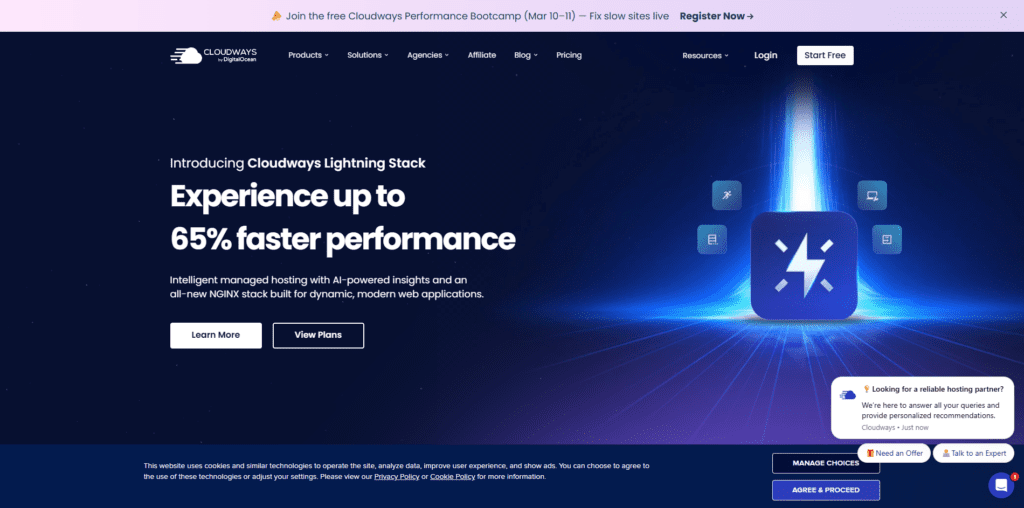
Cloudways offers cloud hosting with integrated staging across infrastructure providers, including DigitalOcean, AWS, and Google Cloud. It requires more comfort with server management than fully managed alternatives, making it a better fit for developers and agencies than for hands-off store owners.
A WordPress staging environment is a practical tool for any WooCommerce store that generates revenue and wants to reduce the risk of update-related failures. When staging is part of a standard deployment process, changes follow a structured path: test privately, validate performance, confirm checkout stability, then deploy. That structure can help reduce rushed fixes, protect live customer data, and make deployments less stressful over time.
The hosts and approaches outlined here vary in price, complexity, and capability. The right choice depends on a store's size, the team's technical comfort level, and how frequently changes are being shipped. What matters most is having a consistent process. The tools that support it are secondary to the discipline required to use them.